
Ditch the paper tickets. Cook from the screen.
The Sagitta smartPOS Kitchen Display System replaces old-school kitchen printers with real-time digital screens that keep your front-of-house and back-of-house perfectly in sync.
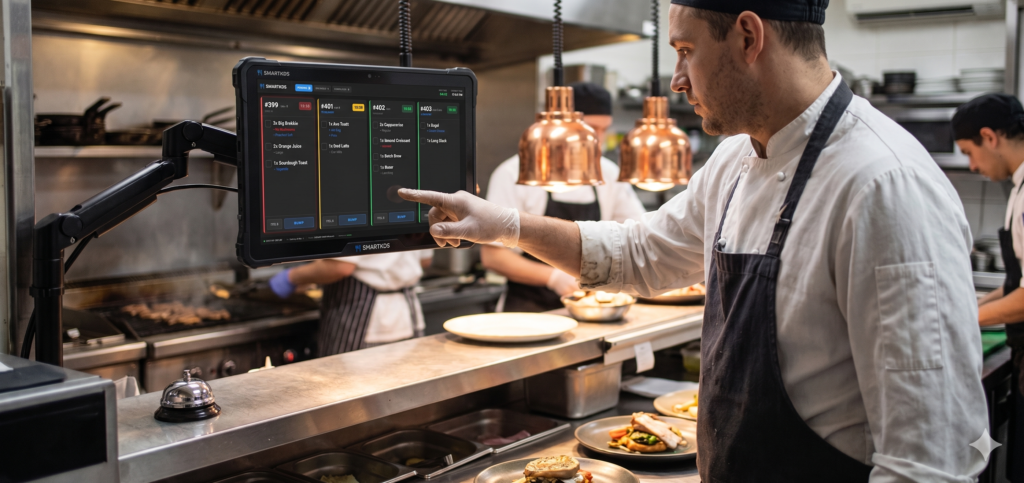
Paper gets lost. Screens don't.
In a fast-paced kitchen, paper tickets are a recipe for miscommunication, lost revenue and stressed-out staff. From the moment an order is tapped into the POS, smartKDS takes over so your chefs can focus entirely on cooking.
New or on-time order.
Nearing target prep time.
Delayed or overdue — the ticket pulses so it needs immediate attention.
Every ticket carries a running timer and changes colour on its own, so the whole kitchen sees what to cook next at a glance.
Built for the rush.
Everything the kitchen needs to receive, track and finish orders — without a single printed ticket.
Orders appear on the kitchen screen the moment they're rung up, with a sound alert for each new ticket.
Bump an order when it's ready, or put it on hold and come back to it later.
Tap each item as it's prepared and it's crossed out, so nothing is missed on large orders.
Three tabs with live counts keep the queue organized during the busiest service.
Bumped something by mistake? Recall it from the completed list and it's back on the board.
Supports ultra-responsive touchscreens or heavy-duty physical bump bars for chefs wearing gloves or working around grease.
Press Send configuration to KDS on the POS and the kitchen screen pairs itself in seconds.
When the cook bumps an order, the customer's number moves from Preparing to Ready on the pickup board.
Nothing to install — open it on any kitchen tablet or screen, go fullscreen, and add it to the home screen.
Three steps to a paperless kitchen.
smartKDS is a web app. All you need is a tablet or screen in the kitchen with a browser and an internet connection.
On the kitchen tablet, open the smartKDS link below in Chrome or Firefox, then add it to the home screen so it runs fullscreen.
On the POS, go to Back Office → Settings → Kitchen Display, switch it on, and enter the Kitchen ID from the lower-left of the kitchen screen — or scan its QR code.
Press Send configuration to KDS. The kitchen screen shows Paired with the POS and orders start flowing in.
https://smartkds.sagittatechnologies.com/smartQueue bump-to-ready needs a smartPOS Pro plan.
Keep the kitchen in sync.
smartKDS is free with smartPOS. Pair it with the free smartCDS customer display for a complete counter-to-kitchen setup.