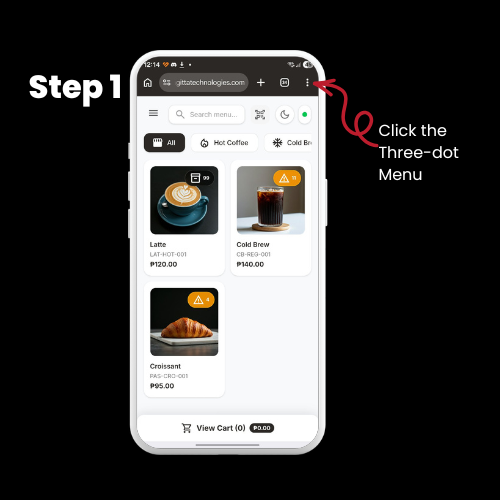
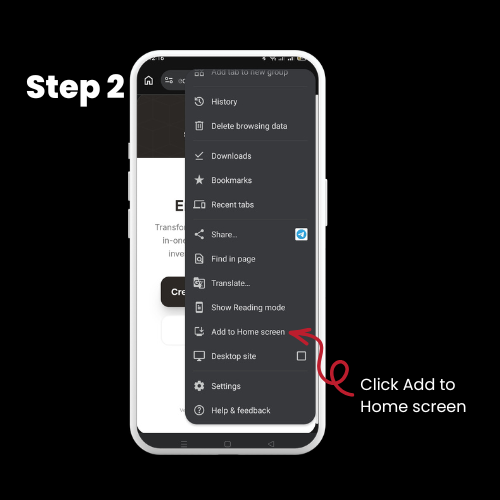
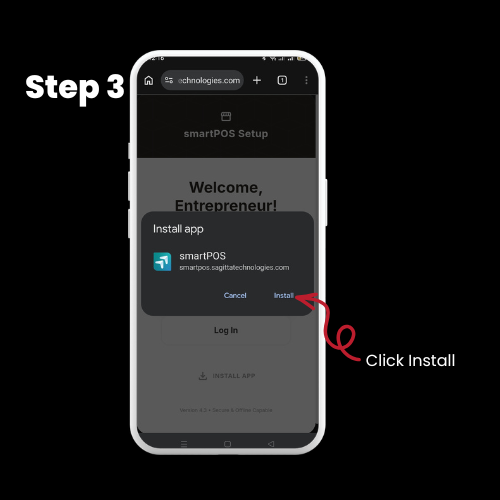
Welcome to the future of browsing! Have you ever visited a website and wished you could just save it as an app on your device without dealing with a bulky app store? That is exactly what Progressive Web Apps (PWAs) allow you to do.
PWAs give you the fast, immersive experience of a native app while using a fraction of your device’s storage space. Plus, you can install them directly from your favorite web browser with just a few clicks.
In this guide, we will walk you through exactly how to download and install a PWA on Chrome, Firefox, Edge, and Safari.
Google Chrome
Chrome is one of the biggest champions of PWAs, making the installation process a breeze across all devices.
Look at the far right side of the address bar. If the site is a PWA, you will see a small Install icon (it looks like a computer monitor with a downward arrow).